


Message aggregation is a process that lets you forward and gather all your emails from different email providers into a single inbox. This lets you centralise all your emails and manage them more efficiently with Gmail.
In this guide, you’ll learn everything you need to know about forwarding emails to Gmail, one of the most popular email services. You’ll also discover why it’s beneficial to redirect your emails to Gmail.
Why forward emails to Gmail?
Forwarding your emails to Gmail has many benefits. First, it lets you centralise all your emails in a single Gmail inbox. You no longer need to check several different inboxes.
What’s more, Gmail offers powerful search and filtering features, such as filters and rules, that let you quickly find the emails you need. You also benefit from Gmail’s security and reliability, with strong protection against spam and viruses. By forwarding your emails to Gmail, you can also access your email from any device connected to the Internet.
Requirements to forward your emails to Gmail
You’ll need the following information:
- Your Gmail account (of course)
- The email address of the account you want to add
- The password for that email account
- The POP server and its port (to retrieve emails from that account)
- The SMTP server and its port (to send emails from that account)
You can find the POP and SMTP server details on your email provider’s website. If you can’t find them, try searching for these server names on Google (e.g. “POP server providername” or “SMTP server providername”).
To make things easier, here’s a list of the SMTP and POP servers of the most common email providers in France:
| Provider | SMTP server | Port | POP server | Port |
|---|---|---|---|---|
| Free.fr | smtp.free.fr | 587 | pop.free.fr | 995 |
| Laposte.net | smtp.laposte.net | 587 ou 465 | pop.laposte.net | 995 |
| Orange.fr / Wanadoo.fr | smtp.orange.fr | 465 | pop.orange.fr | 995 |
| Outlook / Hotmail | smtp-mail.outlook.com | 587 | outlook.office365.com | 995 |
Step-by-step guide to forward emails to Gmail
To forward emails from specific providers to Gmail, such as Orange Mail, Free Mail, Hotmail and Outlook, follow these simple steps:
1. Log in to your Gmail account and go to your account settings.
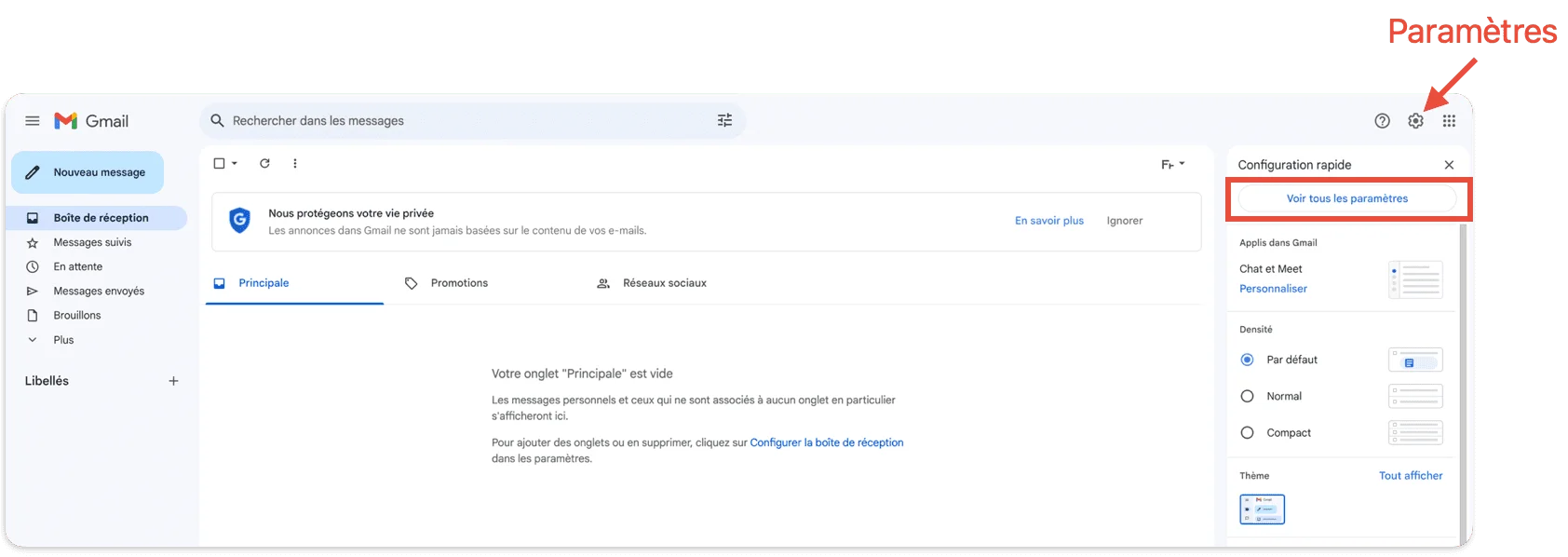
2. Select the Accounts and Import tab > Check mail from other accounts > Add a mail account.

3. Enter the email address you want to add.

4. Select Import emails from my other account (POP3).

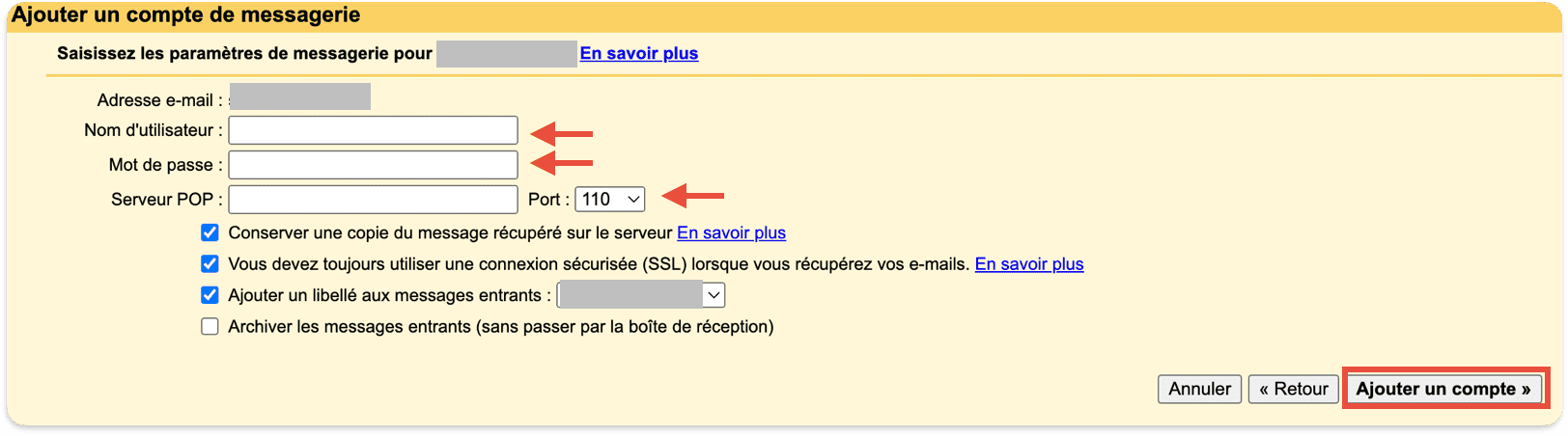
5. Enter the email settings by adding
- Username (it must be a full email address, e.g. paperboy@orange.fr).
- Password for the email address. Remember that every time you change the password with your provider, you must also update it in Gmail.
- the POP server and its port. Always use a secure connection.
It’s recommended to keep a copy of messages on the original server, unless your storage space is limited.
You can add an automatic label to any message received from this email address, making it easier to identify.
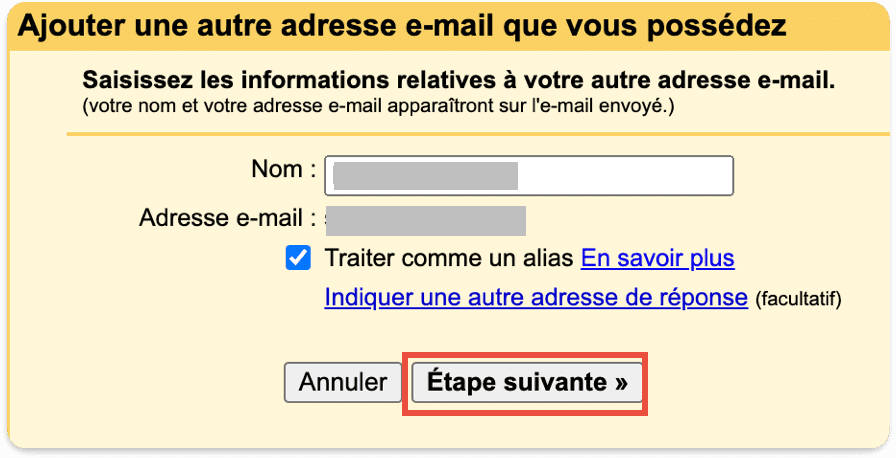
6. Yes! Your email account has been added. Select “Yes, I want to be able to send mail as address…” and we continue
7. Enter the details of your other email address. Select “treat as an alias”.
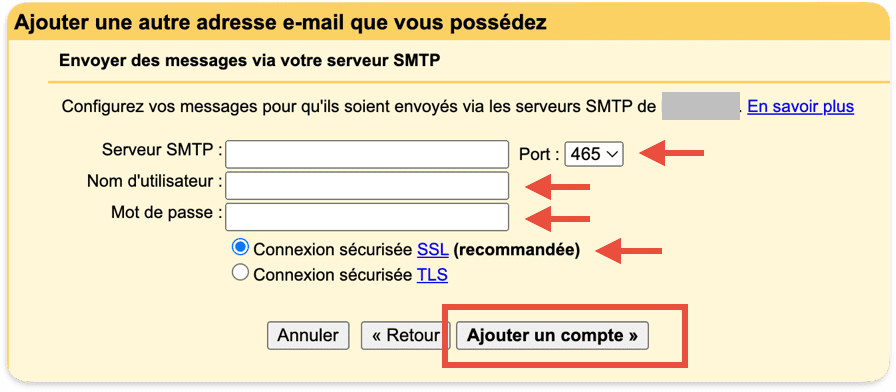
8. Configure your outgoing mail:
- SMTP server and its port. Always use a secure connection.
- Username (it must be a full email address, e.g. paperboy@orange.fr).
- Password for the email address. Remember that every time you change the password with your provider, you must also update it in Gmail.
9. We’re almost done.
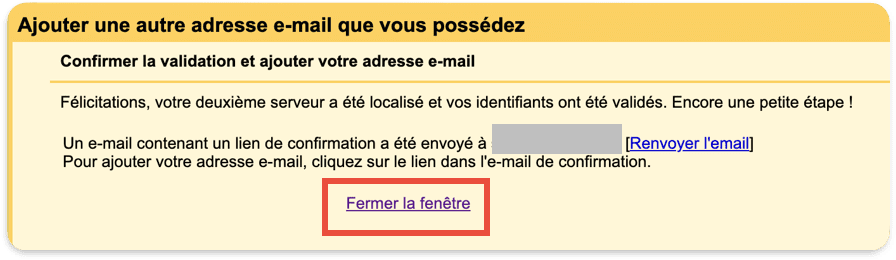
The last step is to log in to your provider’s mailbox. Find the email from Gmail, click the link to confirm you want to be able to send emails via Gmail. A new page will open and click Confirm one last time.
And that’s it.
Test the connection by sending a message from the newly added email address and try sending the message to yourself.
Solving common problems when forwarding mail to Gmail
When forwarding mail to Gmail, you may run into some problems. Here are a few common issues and their solutions:
- Problem: Some emails aren’t being forwarded.
- Make sure you’ve enabled forwarding in your original mailbox.
- Problem: Forwarded emails appear in the spam folder.
- Solution: Mark the emails as not spam and add the senders’ addresses to your contacts.
- Problem: Attachments aren’t forwarded correctly.
- Solution: Check Gmail’s attachment size limits and make sure attachments respect the 25 MB maximum size limit, both for sending and receiving.
By following these solutions, you’ll be able to resolve most common problems when forwarding mail to Gmail. If you have other questions or need further advice, feel free to leave a comment below.
Goal achieved: successfully forwarding your emails to Gmail!
Congratulations! By following this practical guide, you’ve successfully redirected your mail to Gmail.
You can now centralise all your communications in a single inbox, simplifying your day-to-day email management. Make the most of Gmail’s advanced features for an efficient, smooth email experience.
